Book A Demo

Show Variations


After submitting a Quote, it is quite common to receive an updated schedule, as the architect or client would like to include additional addons or variations.

In order to see what these variations are:

  • Navigate to the project / quotes page that you submitted the quote from
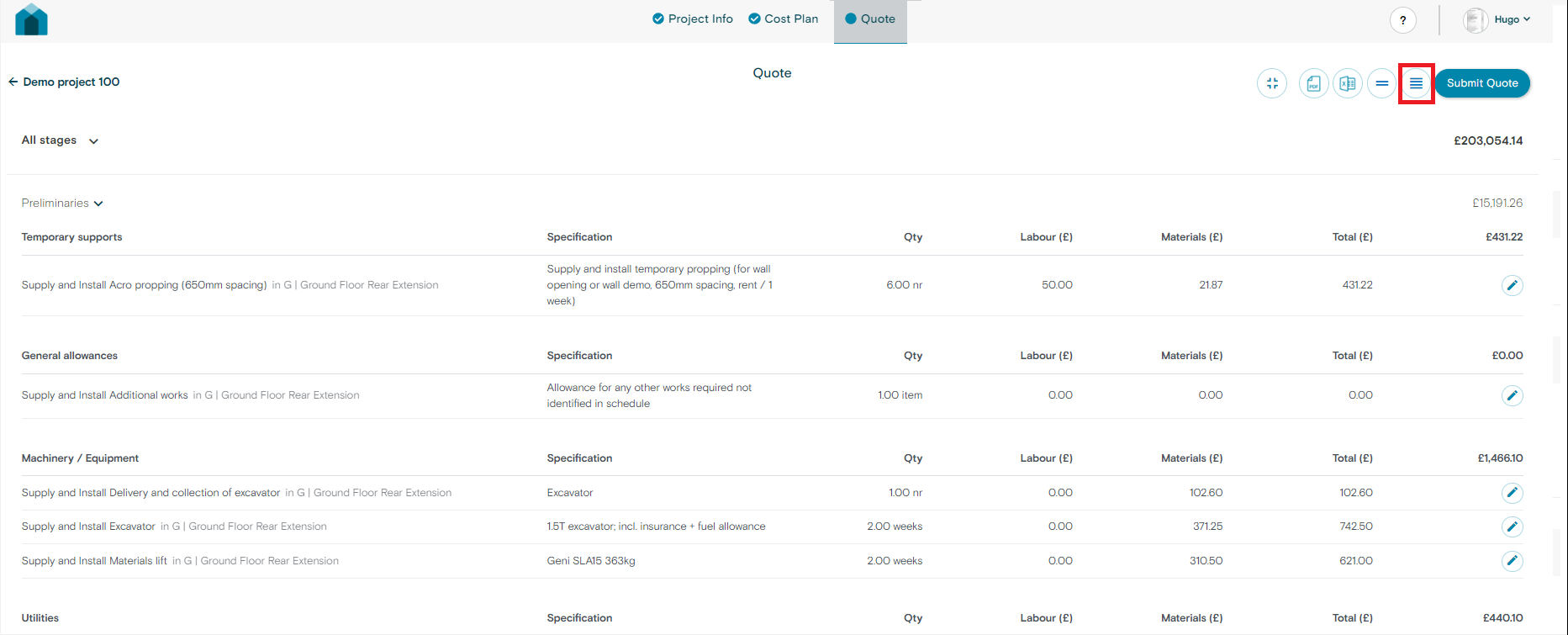
  • Click the “Show variations” icon to display variations from the original submitted quote. Red square below
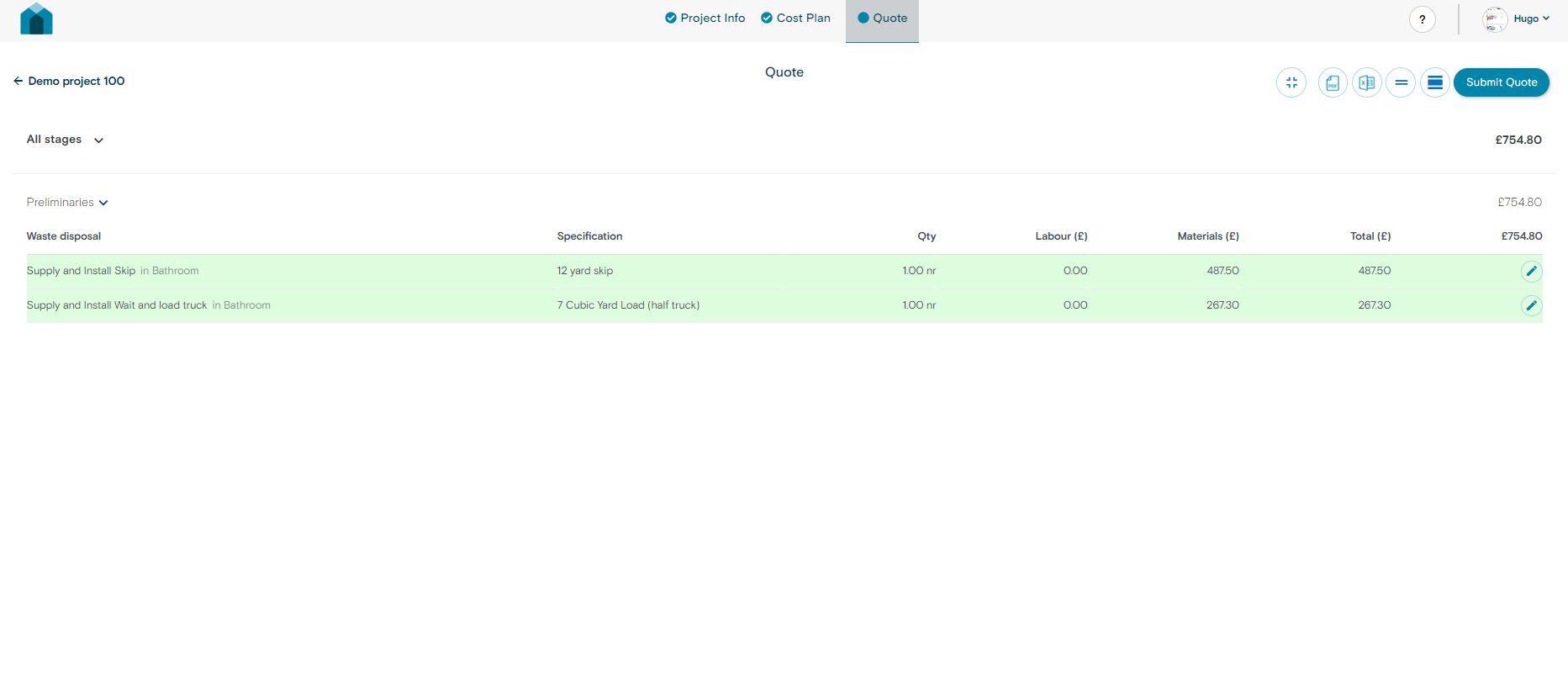
  • After clicking the “Show Variations” button you will be presented with highlighted changes from the original quotation.

Display or hide substages

Substages are an important part of building out your schedule as a Stage section within a project can be quite large with numerous amounts of tasks within it.

Utilising substages allows you to tick off and check each box, so that no task or substage is missed from your schedule of works.

In order to use substages:

  • Navigate to the schedules page
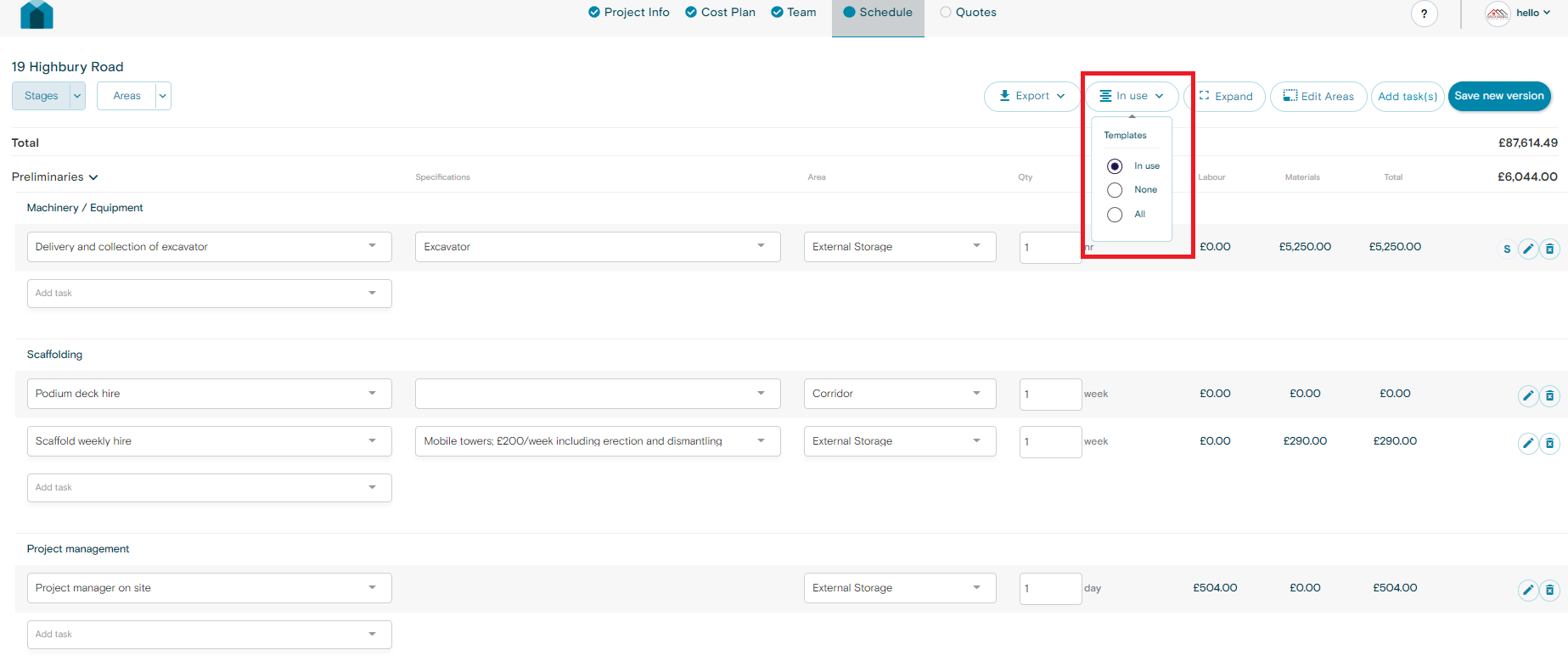
  • The default view of the schedule page is to show “Used Substages”
  • You can choose to “Show All” or “Hide All” substages by clicking this button here.

How to compare submitted quotes


Comparing quotes is a key feature of Buildpartner’s software, and will help you choose the correct builder or benchmark you would like to proceed with.


In order to do this:

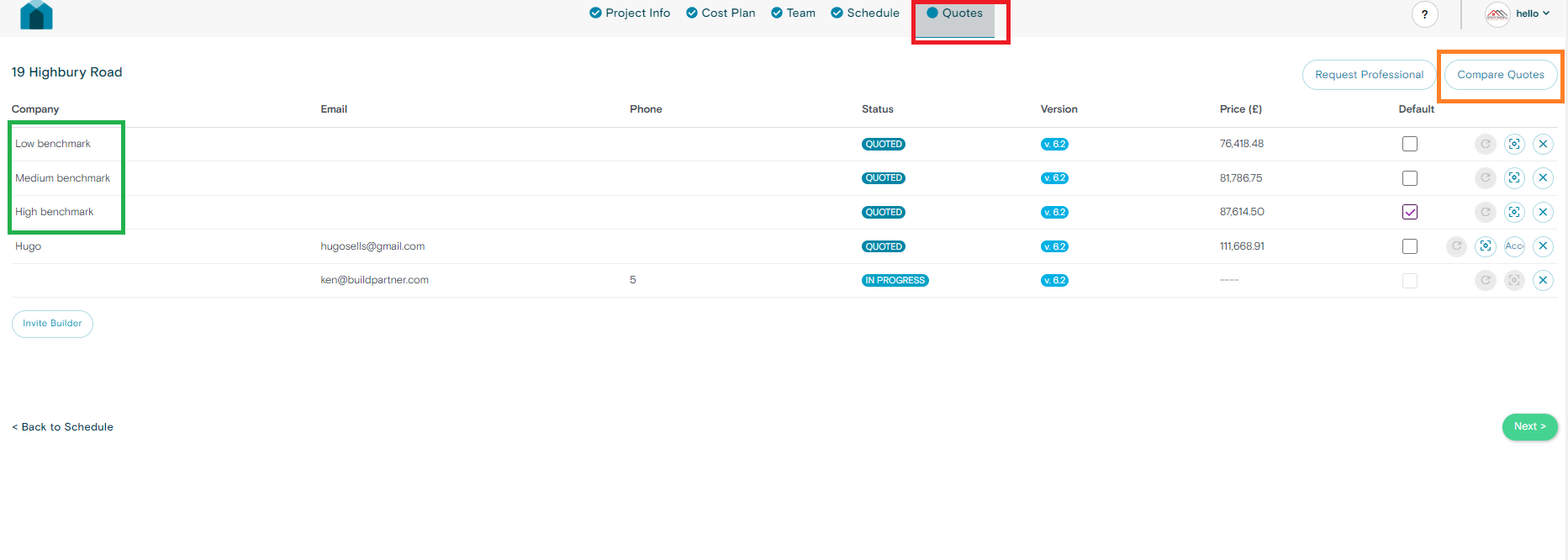
  • Navigate to the quotes section of your project. Found on the Red Square below.
  • Here you can see a list of benchmarks and builders that have submitted or are currently submitting quotes.
  • Benchmarks relate to the tiers of builders, for example High benchmark would relate to a larger scale builder with higher fees associated with, while lower benchmark would generally refer to a sole trader with lower overhead. 
  • To compare and get a detailed breakdown of differences between quotes click on “Compare Quotes” found in the Orange square in the image above.


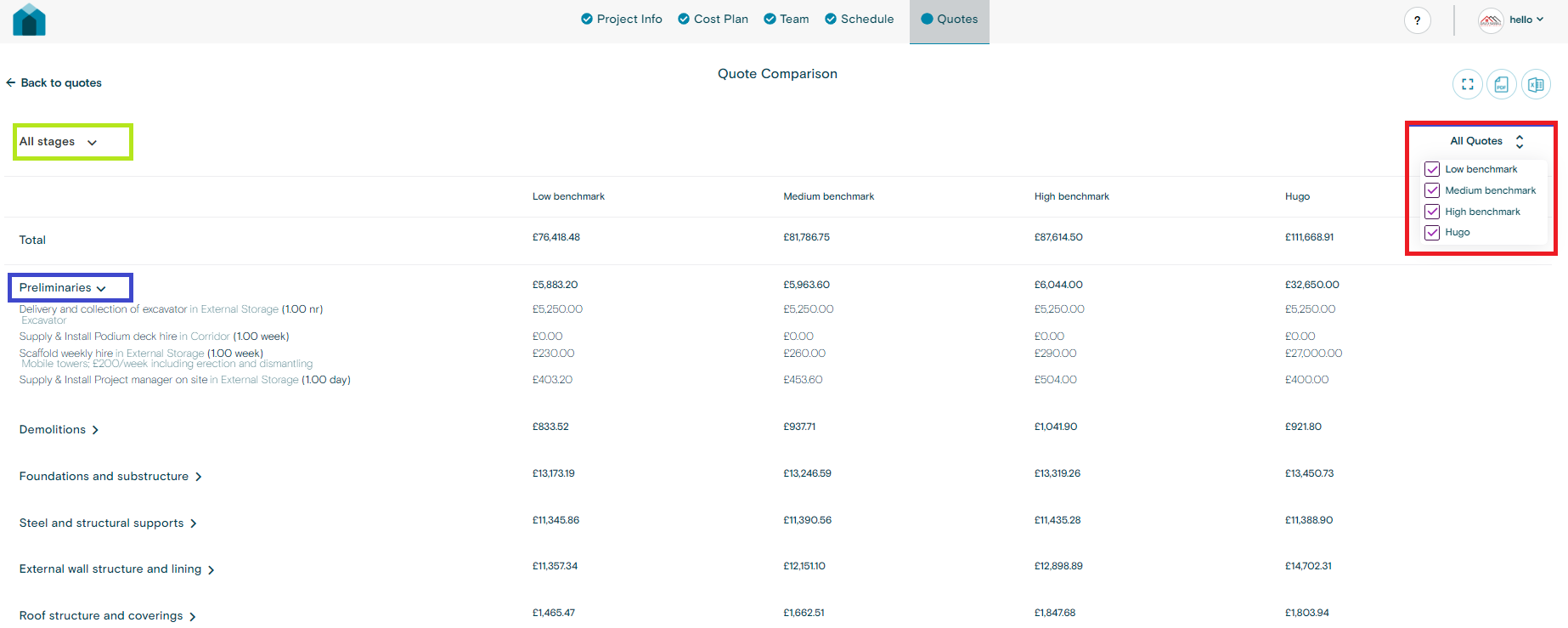
  • On the Compare Quotes page you can compare different quotes across different stages.

  • Use the Filter dropdown on the right to customise which Quotes you would like to compare.
  • Click on the Stages/Areas in the Blue square, to expand that particular area and compare task by task differences.
  • Use the view filter (Green square), to change whether you want to view the Quote comparison page via Stages or Area.

Entering Fixed Costs

When building out a schedule it is common to enter fixed costs for particular stages of a project. For example, a fixed quotation fee for timber framing structure, or a kitchen island bench.


To do so and to ensure there is no double counting of costs do the following:


For this example we are entering a fixed timber framing cost

  • Navigate to the schedule page
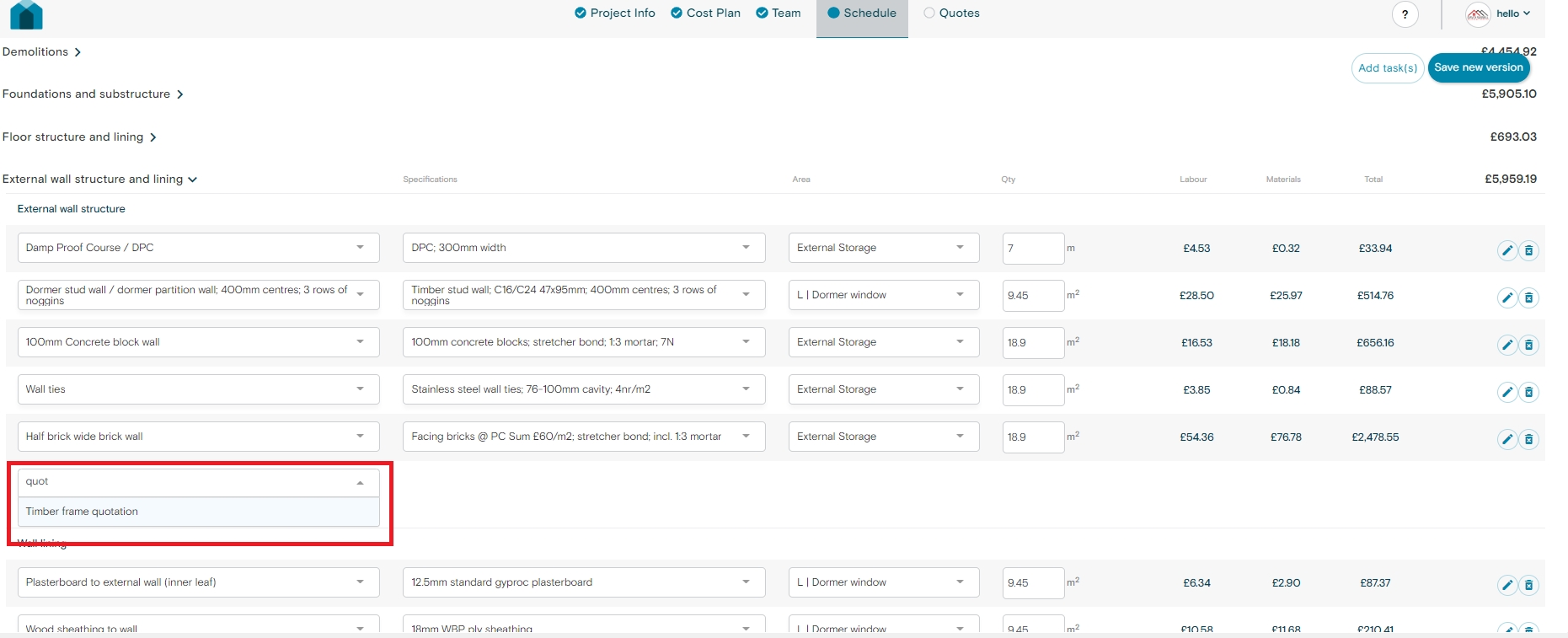
  • Navigate to the stage/substage you want to add the fixed quotation fee to
  • Search for “quotation”
  • Add the Timber frame quotation task
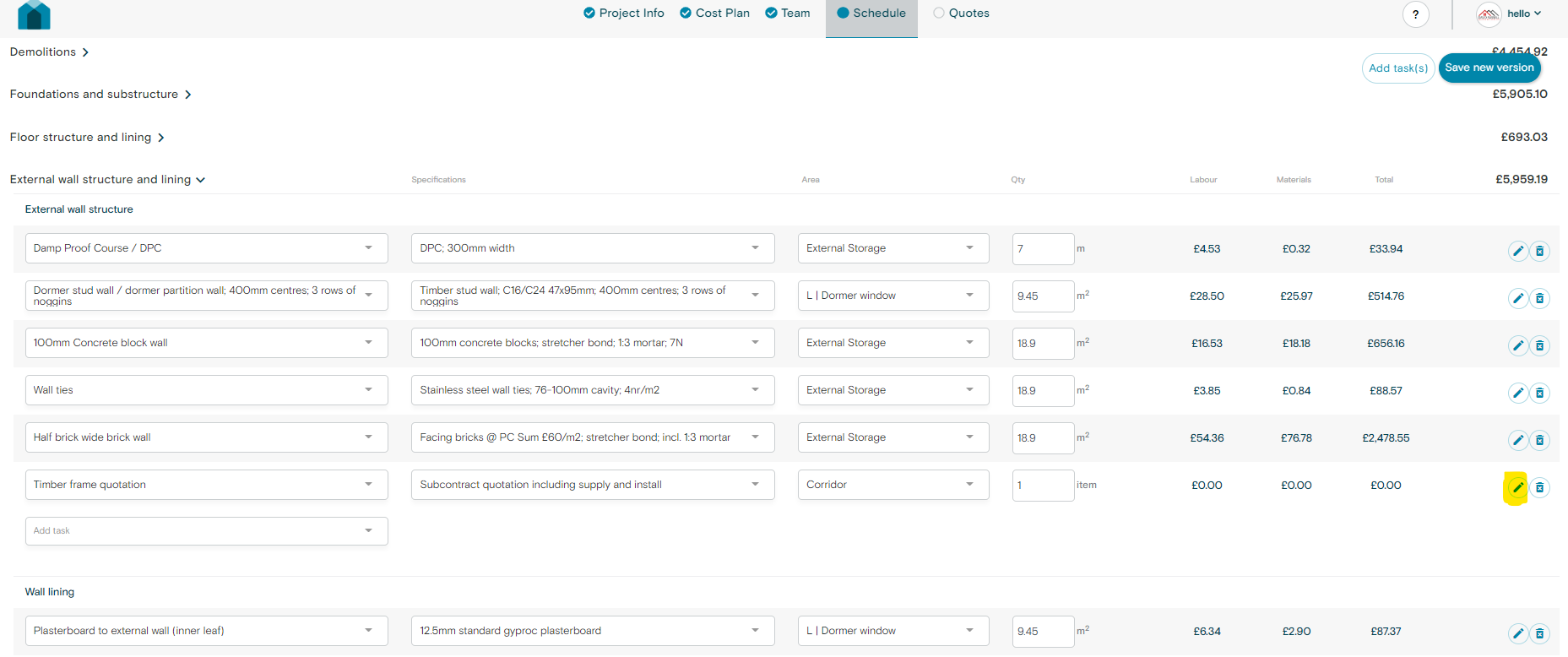
  • Click edit on the Timbr frame quotation task
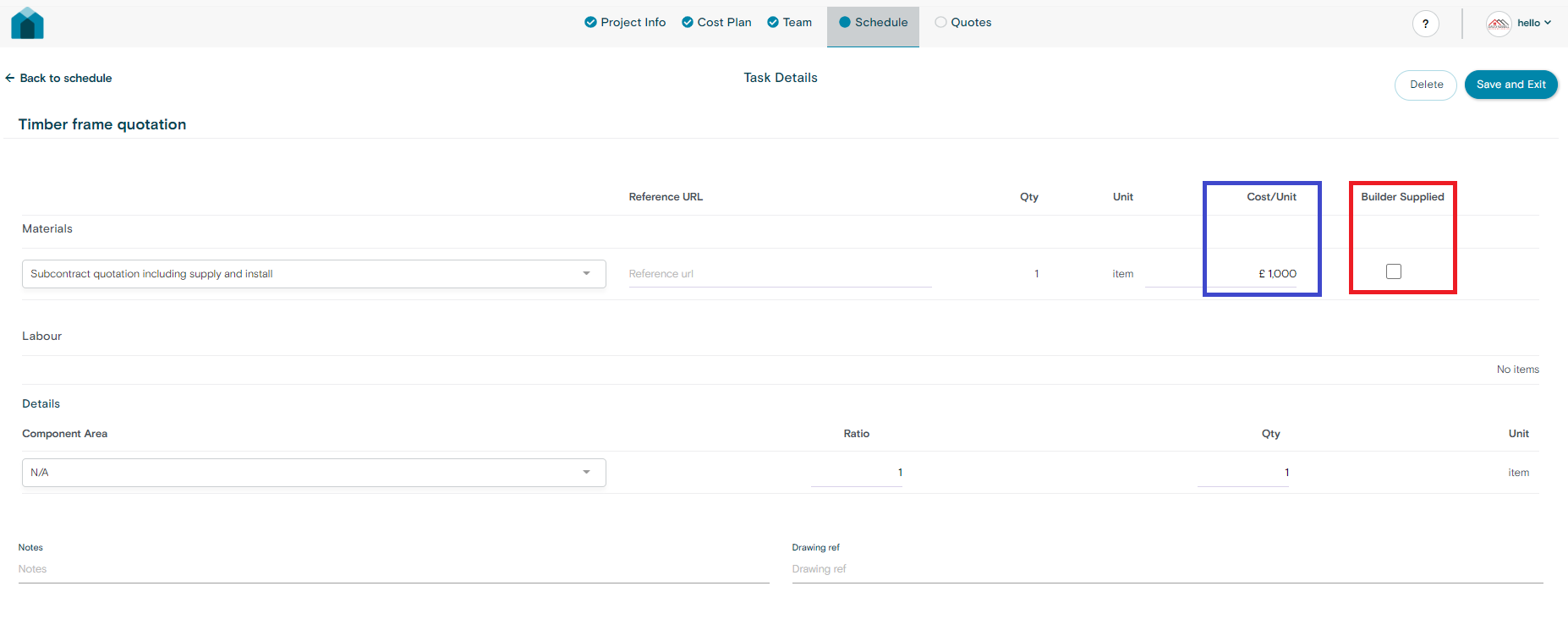
  • Uncheck “Builder Supplied” (Red square below) and enter the fixed quotation cost (Blue square below)
  • Click “Save and Exit”
  • Delete any other task within the “External Wall structure” stage that is covered by this Timber frame quotation fixed cost, by clicking the trash icon.

Adding Terms and Conditions to PDF extract

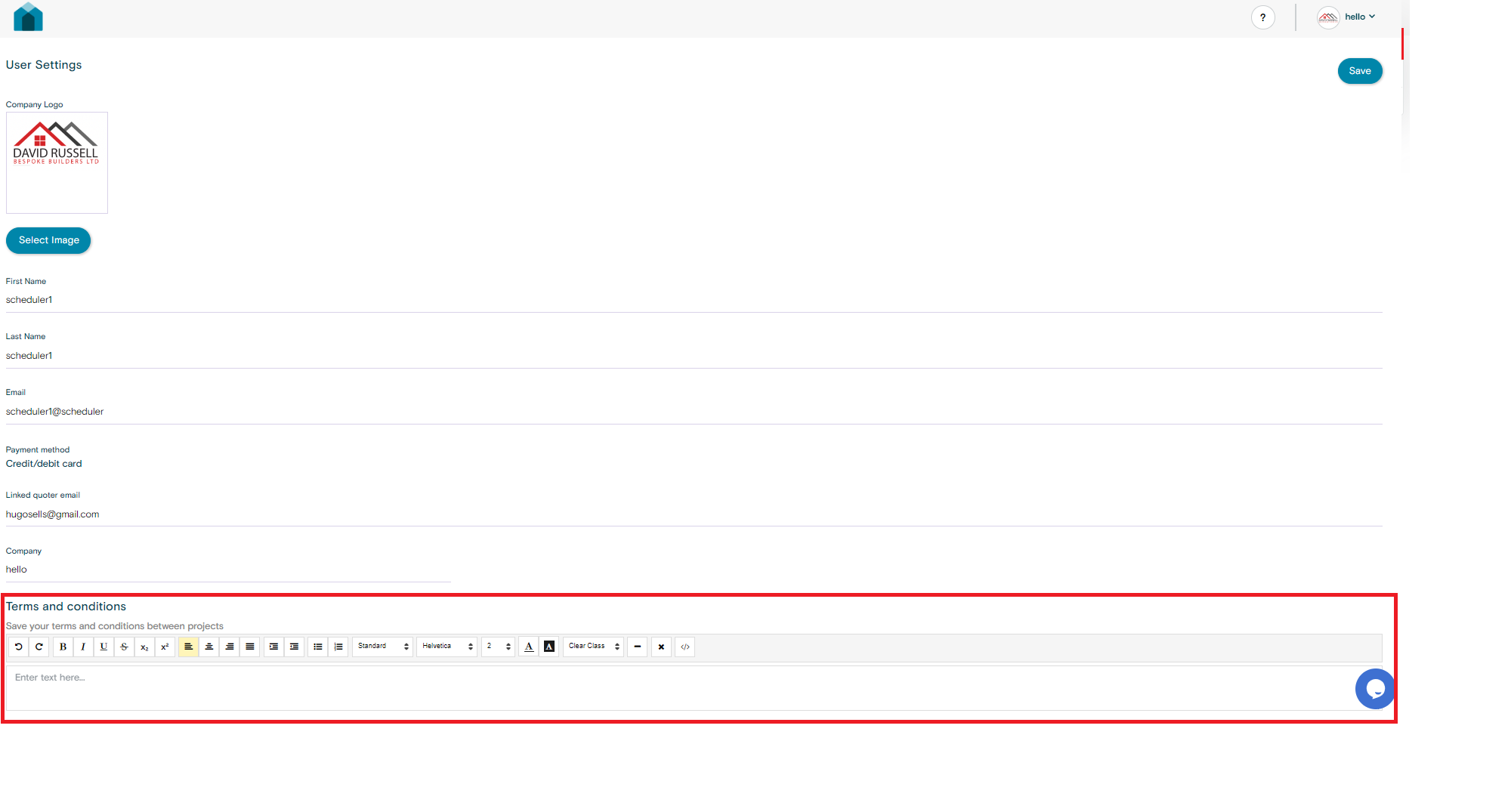
  • You can add your Terms and Conditions to the PDF extract of the Cost plan.
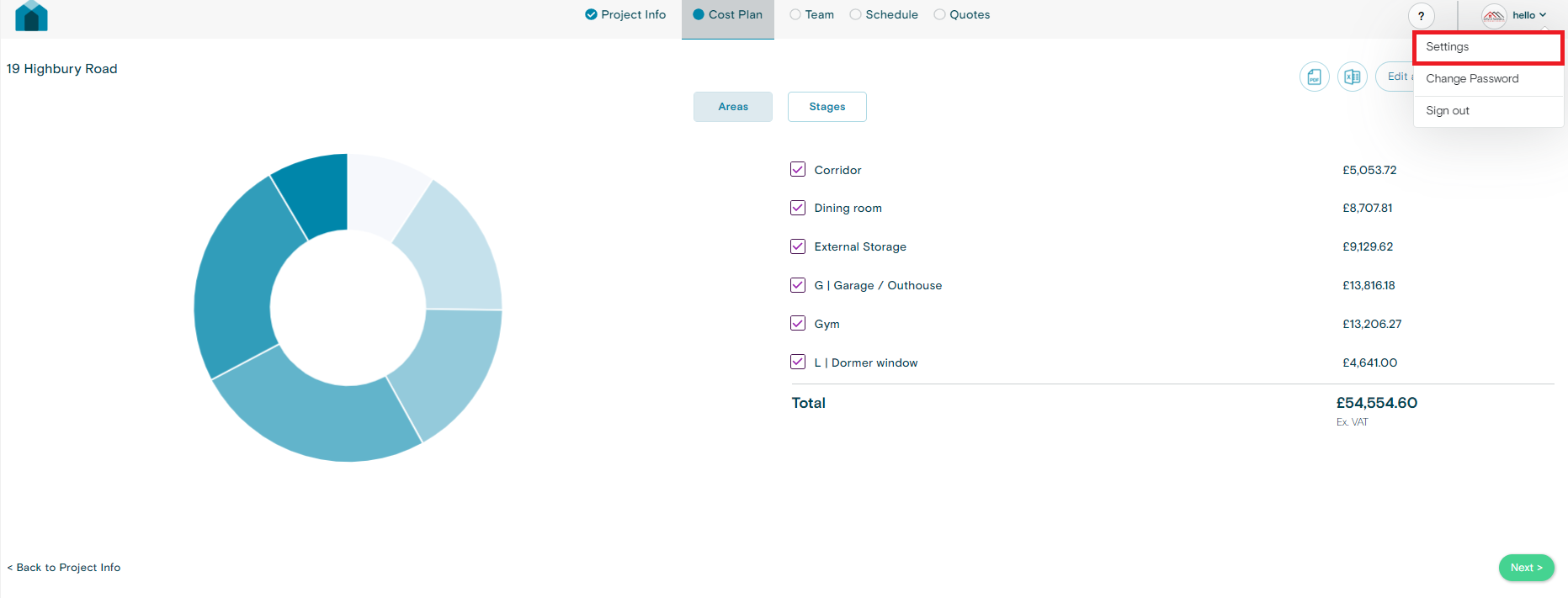
  • To do so navigate towards the settings page:
  • Scroll down the page and enter your Terms and Conditions
  • Click Save
  • Click on PDF download
  • Your Terms and Conditions will now appear at the bottom of your extract

Video Tutorial – Inviting a builder to quote

In this video tutorial we walkthrough how to invite a builder to quote on a project.

Video Tutorial – Submitting a Quote

In this video tutorial we walk you through how to submit a quote as a new builder.

Editing labour rates


To edit your labour rates, first check you are on a Builders account, you can do so by navigating to the dropdown and checking for the following funtion.
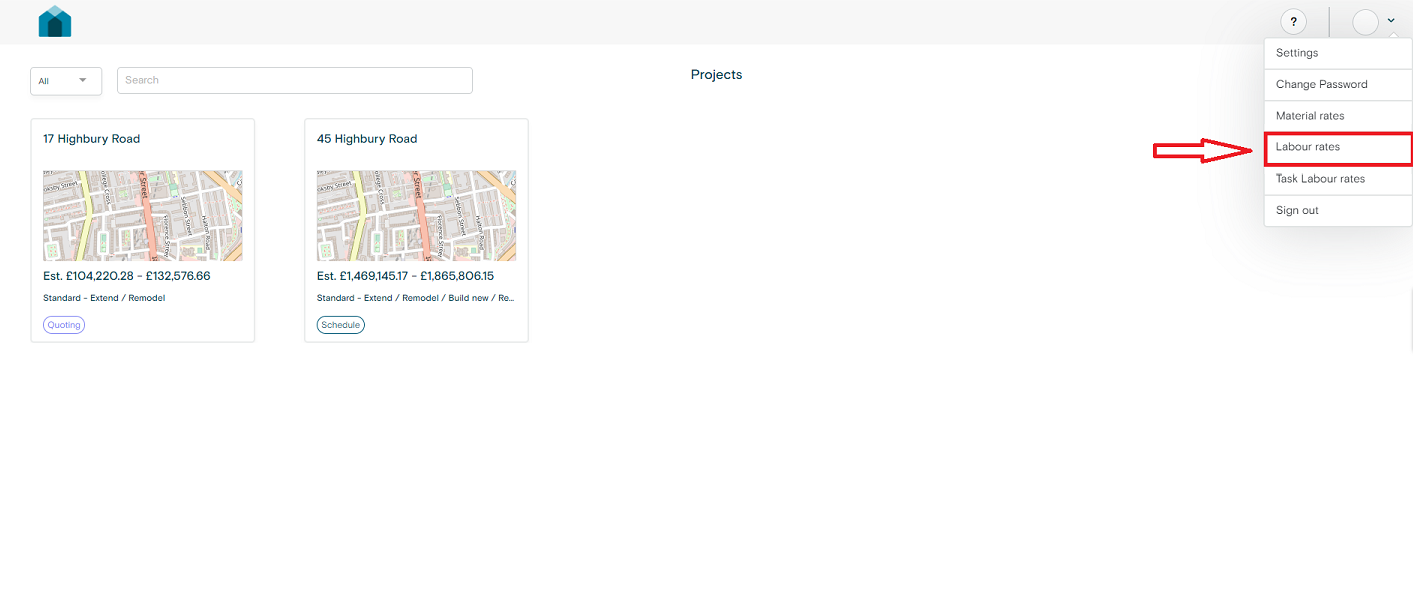
  • If you do not have this feature, you will need to be setup with a Quoters/Builders Account. To be setup, please contact us via the chatbot in the bottom right.

To edit your labour rates

  • Click on the project you want to edit
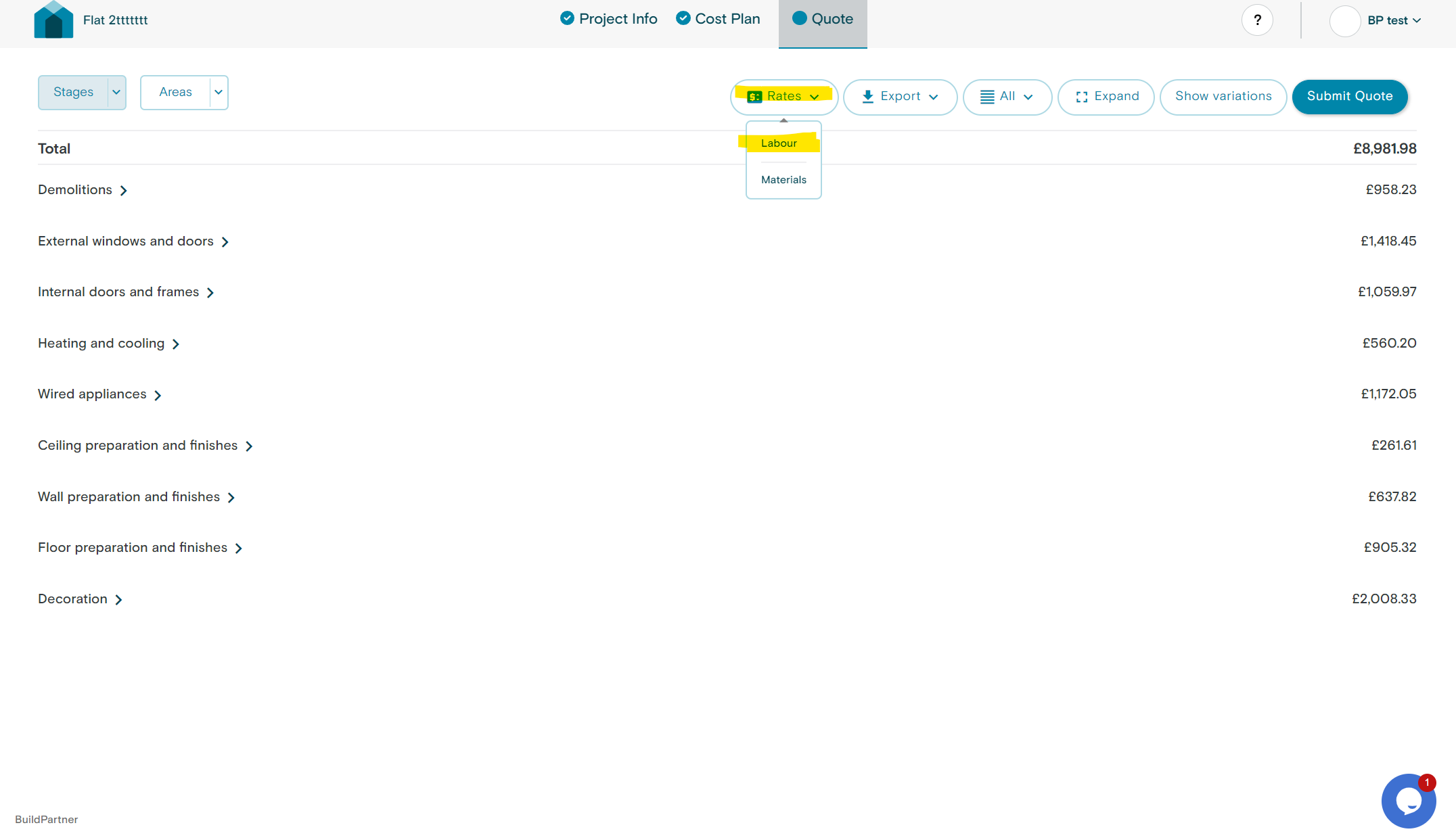
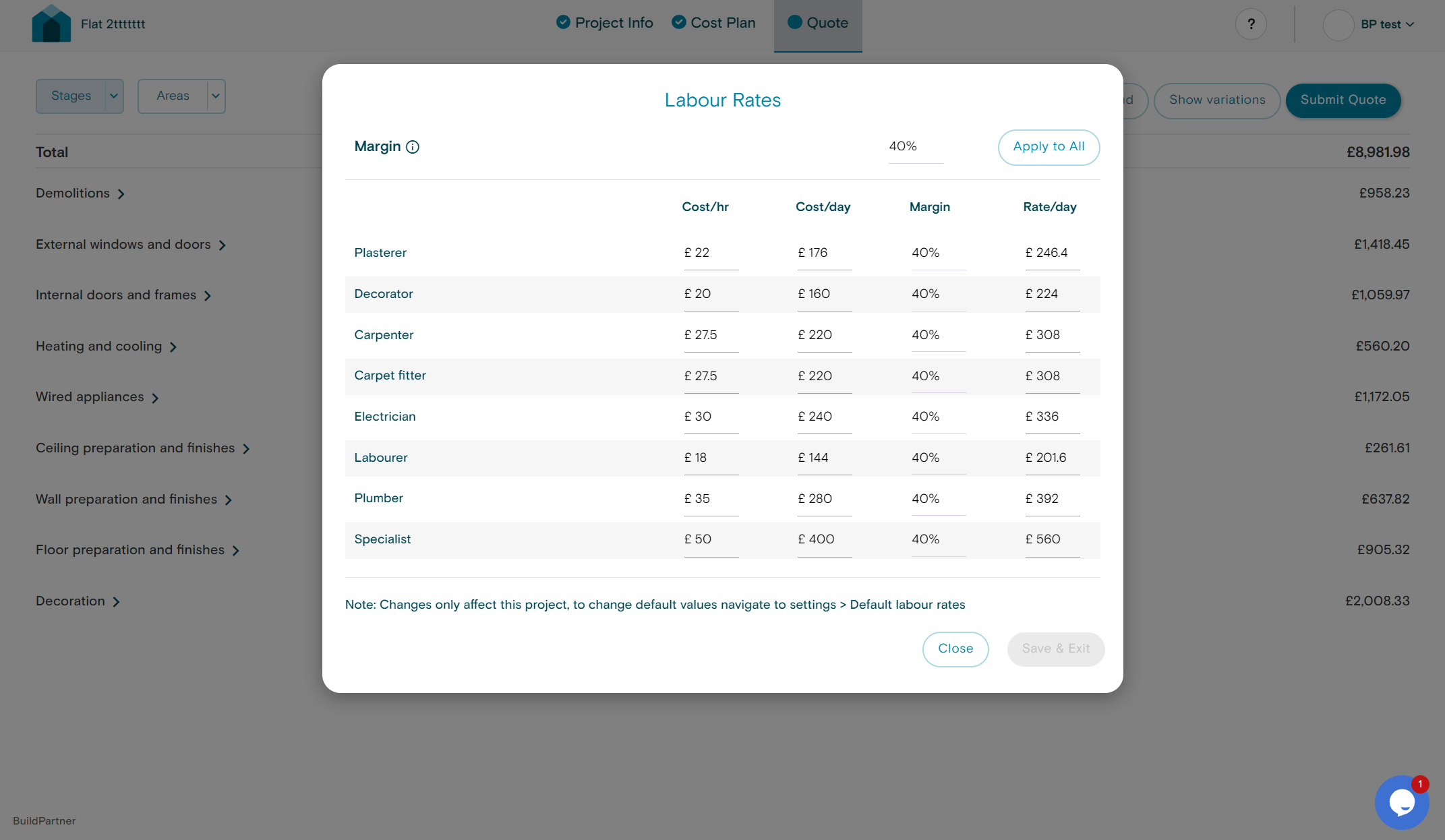
  • Click on the Rates button
  • Edit your margin and rates from the Labour Rates pop up
  • Once done you can hit save and these changes will apply to your project.
Alternatively, you can edit the labour rates of an individual task within the quote itself.

To do so:

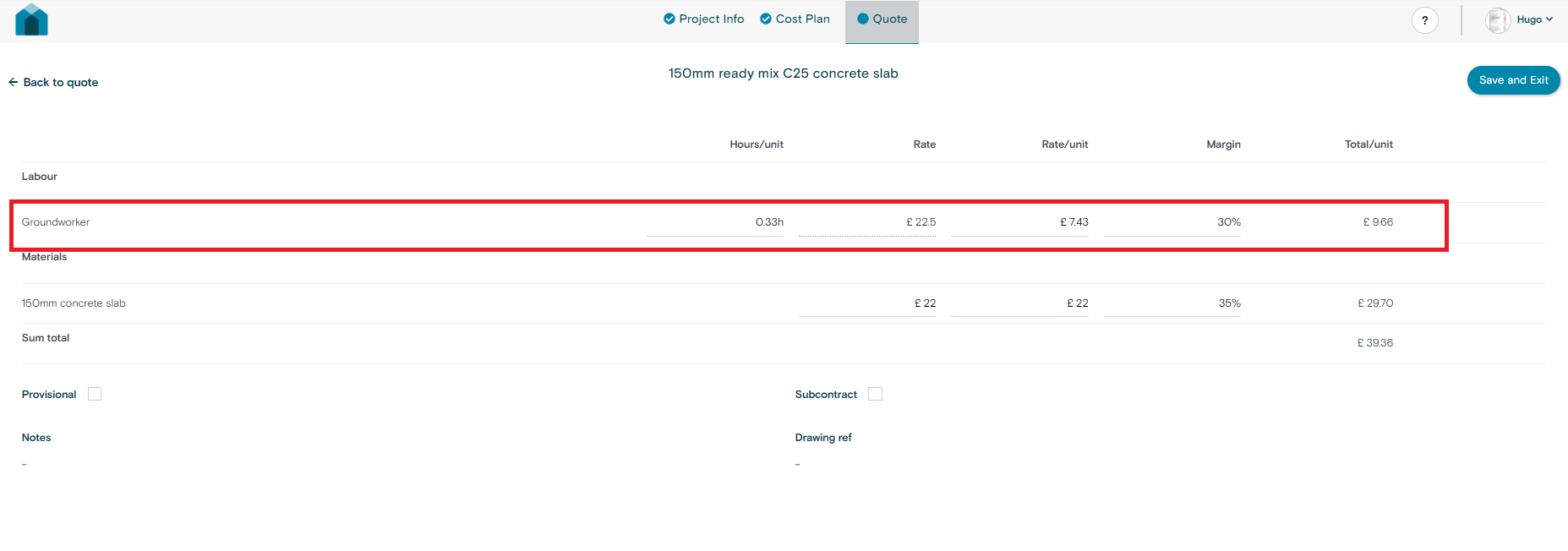
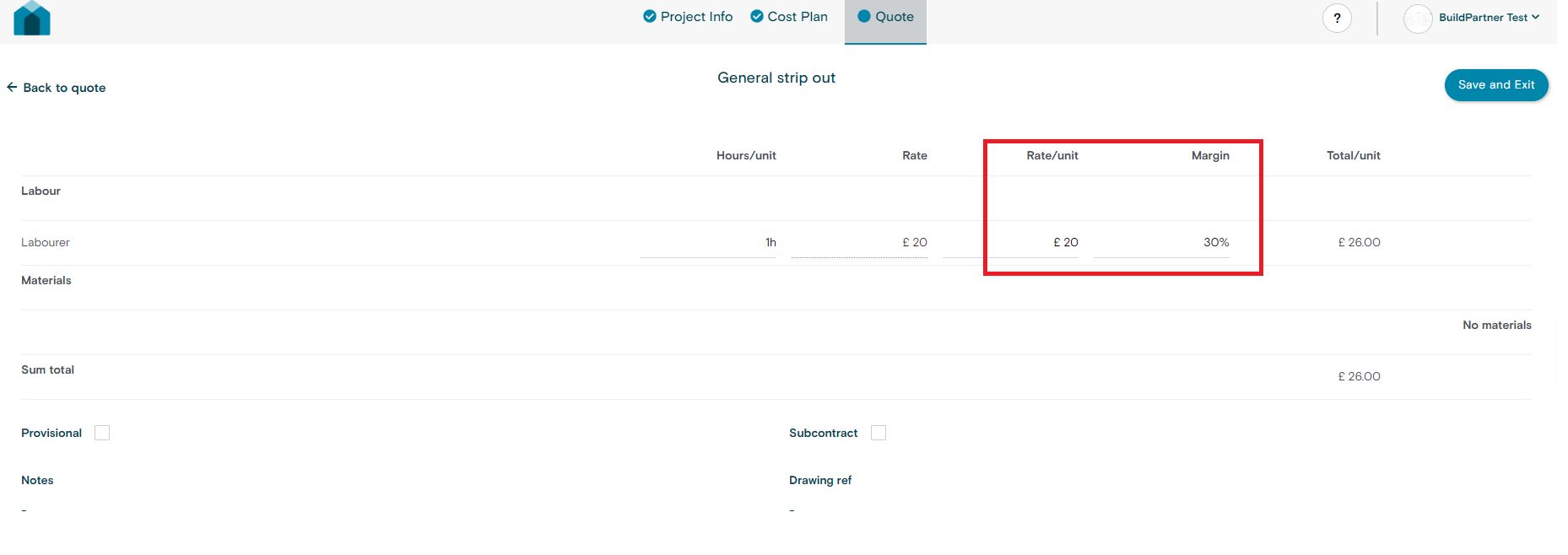
  • Click edit on the task you want to change.
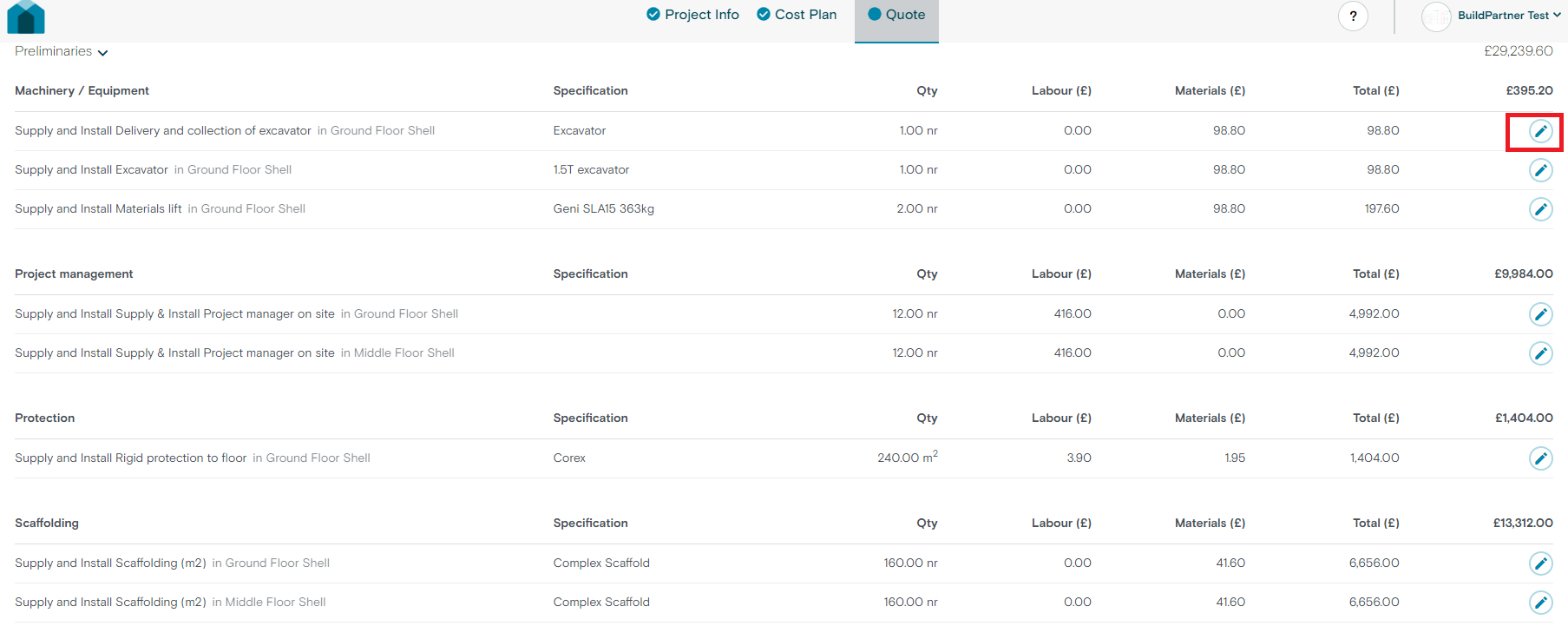
  • Edit the rate and margin, circled in red.
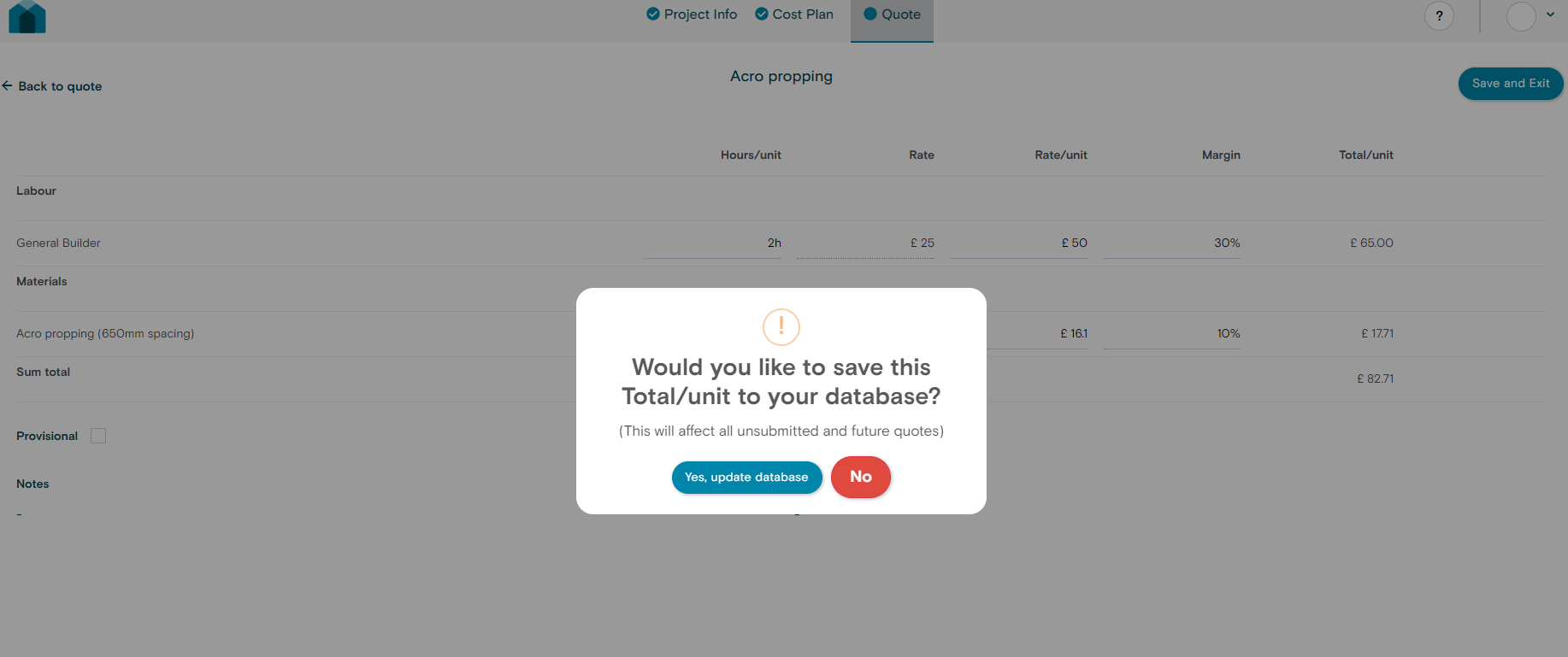
  • From here you can choose to either save to database or change the labour rate of this specific task.

    • Click “Save to database” – This will apply to the rate to your builders database and will effect all similar tasks within the quote you are working on and all other/future quotes.
    • Click “No” – This will apply the rate change to this specific task only.
Change your Labour rates for the future

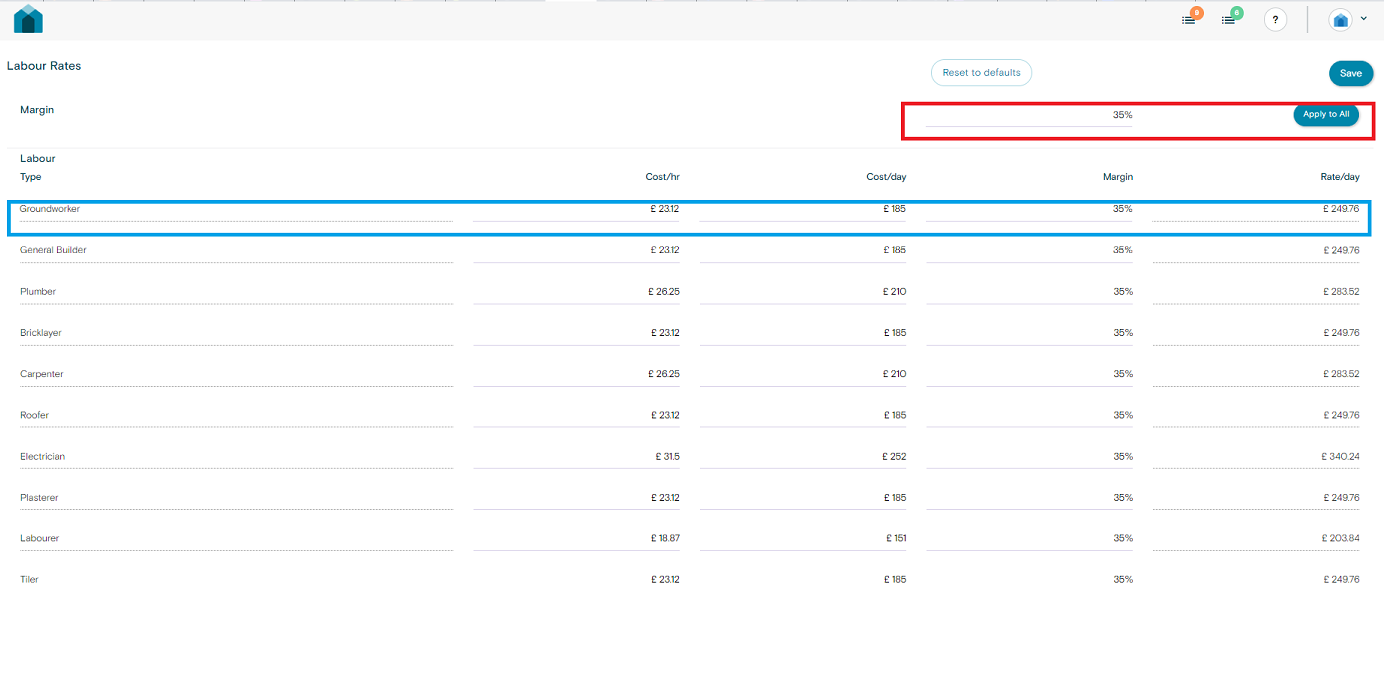
  • To change your labour rates for all future projects, navigate to the default Labour rates page, via the dropdown
  • Here specify your rates and margins you want to apply for all future projects.
Video Tutorial – Creating a Cost Plan

In this video we walk you through how to Create a cost plan.

Editing individual task labour time/rates

Labour time associated with specific tasks can have a major effect on your overall quote.

If you know the length of time that a particular task will take you can easily edit this by editing the individual task withing your quote.

  • First navigate towards your quote
  • Click edit on the individual task you would like to edit
  • Edit the associated Hours/unit for the task and rate if you a specific rate in mind for that task
  • Click Save and Exit
  • From here you can choose to either save to database or change the labour rate of this specific task.

    • Click “Save to database” – This will apply to the rate/hours to your builders database and will effect all similar tasks within the quote you are working on and all other/future quotes.
    • Click “No” – This will apply the rate/hours change to this specific task only.
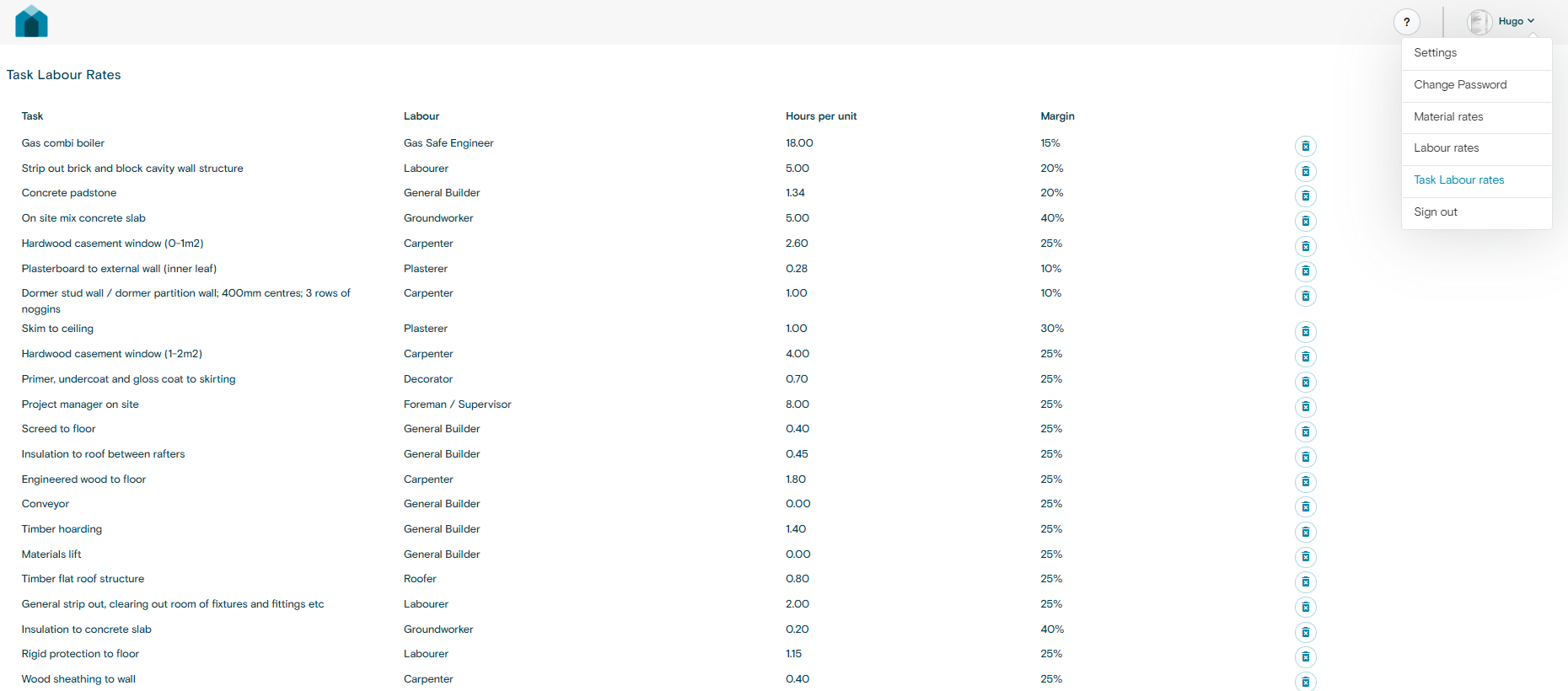
  • Any individual Task labour rates/hours changes saved to the database can be viewed by navigating to the settings page and clicking “Task Labour rates”
  • Here you can view and delete any individual task labour rates/hours entries for your quotes.